
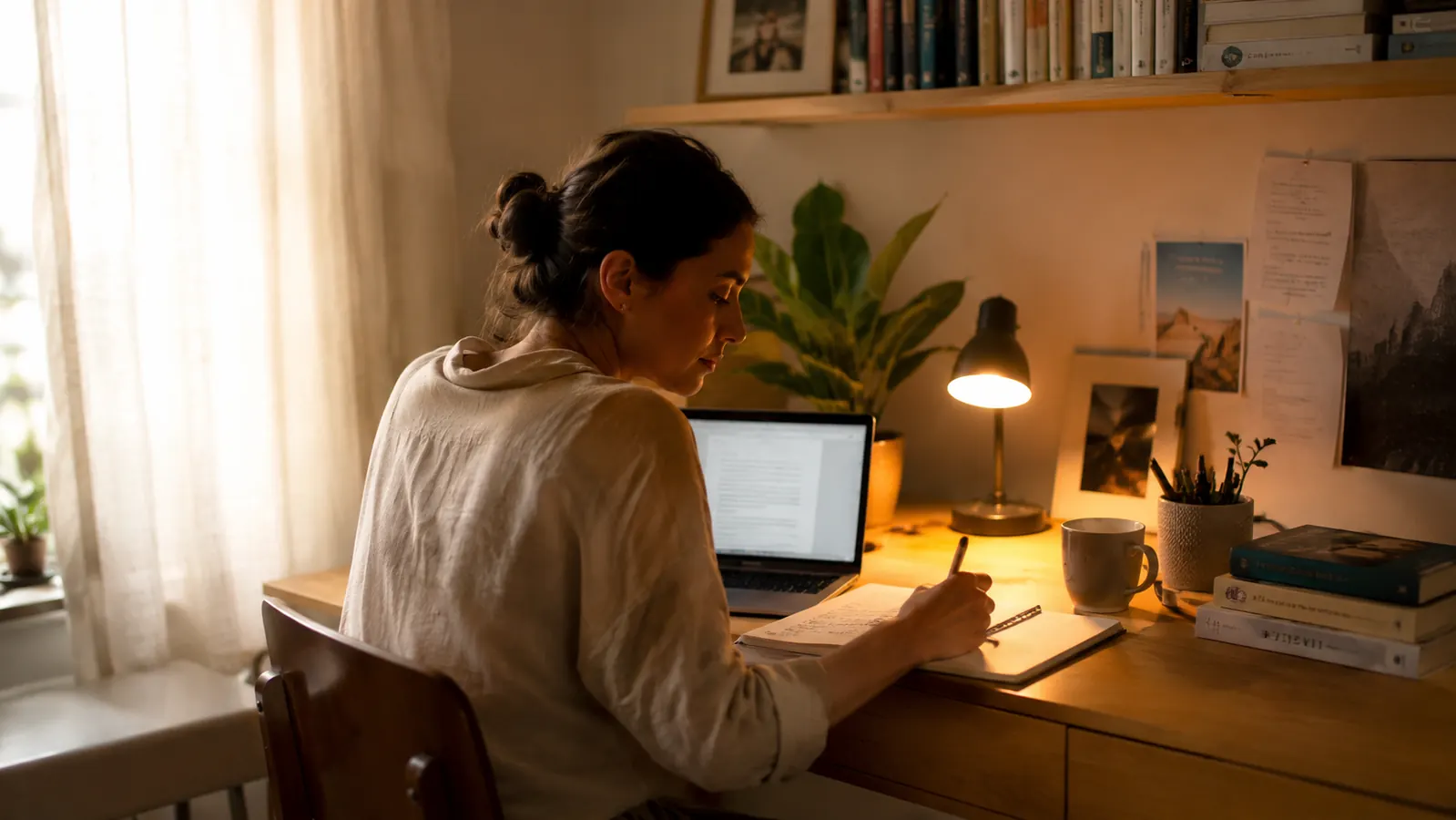
For about three years I worked at a little corner desk under a ceiling light I never thought twice about. By 4 PM every afternoon my eyes felt gritty, my forehead was tight, and I blamed my monitor. I adjusted brightness settings. I tried blue-light-blocking glasses. I switched browsers. None of it did much. The problem, it turned out, was never the monitor at all. It was the light coming from directly overhead, washing across my screen and making my eyes fight themselves all day long. (The piece of gear that finally fixed it: the Pzloz architect lamp. More on that below.)
Home office lighting is the most overlooked upgrade in any workspace, and it is also one of the cheapest to fix properly. You do not need smart bulbs or expensive panel lights. You need to understand where your light is coming from, redirect it, and match the color temperature to your time of day. This guide walks through every step. It takes an afternoon to implement and the relief is immediate.
If your eyes hurt by midday, the fix might be sitting on your desk right now.
The Pzloz architect clamp lamp is what I use in my own home office. Two color temperatures, adjustable arm, USB charging port for my phone, and it clamps on without taking up any desk real estate. Rated 4.7 stars by over 3,300 buyers.
Amazon Check Today's Price on Amazon →Step 1: Diagnose Your Current Light Sources Before You Buy Anything
Before you add a single bulb, sit down at your desk and spend two minutes looking hard at your workspace. Identify every light source: overhead ceiling fixture, windows, monitor glow, floor lamp in the corner. The question you are asking is this: which of these sources is hitting the front face of your monitor?
Any light hitting the front face of your screen creates a competing brightness that forces your pupils to try to compensate constantly. That is what makes your eyes tired. Windows directly behind or in front of you are the biggest culprits. Overhead ceiling lights pointing straight down are second. The fix starts with knowing exactly which problem you have before you spend anything.
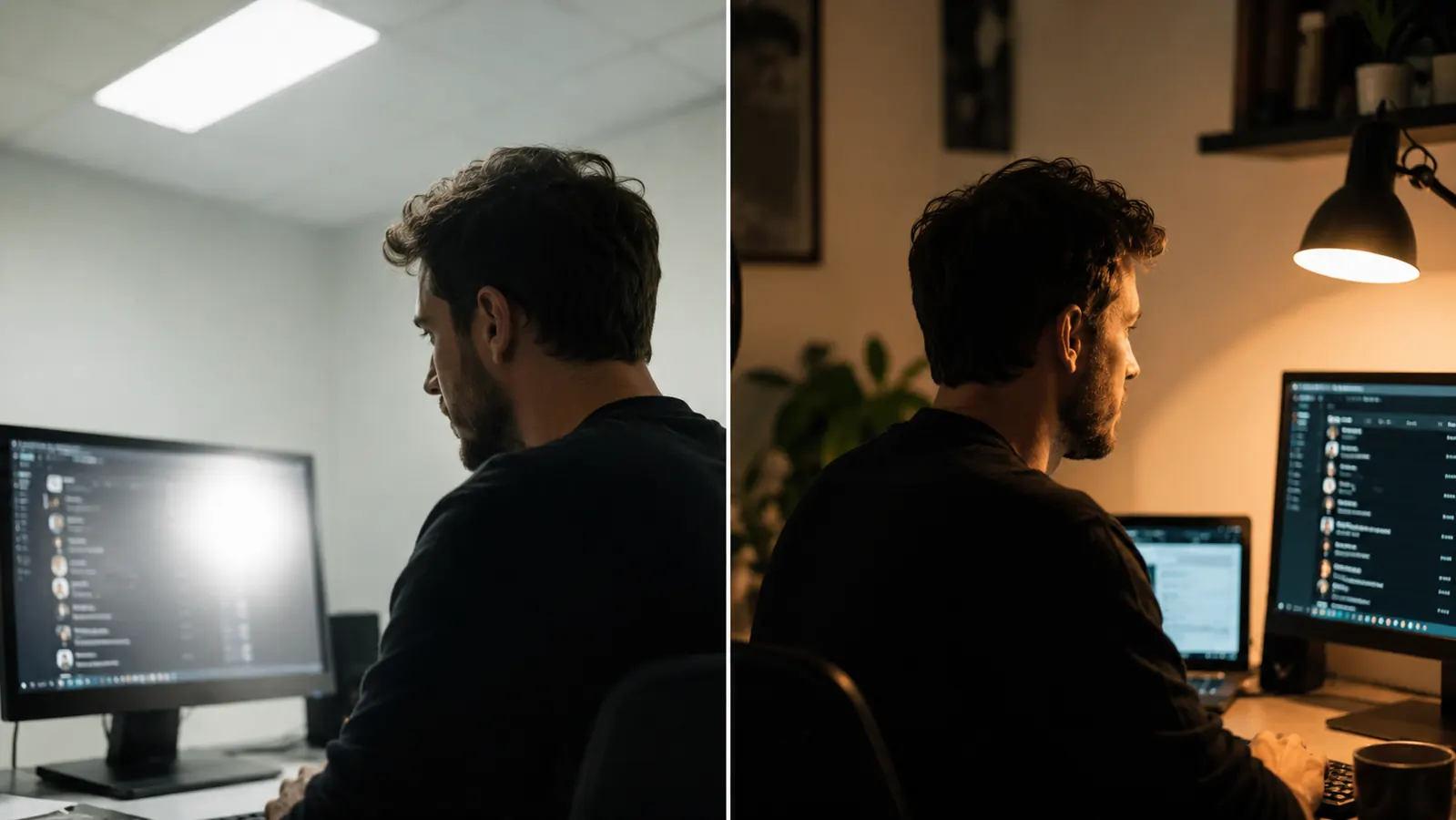
One easy diagnostic: turn off every light source except your monitor. Look at the screen. Then turn on just your ceiling light. If the screen appears to dim or wash out slightly, your overhead is contributing to eye strain. Now you know where to focus your energy.
Step 2: Manage Your Window Light First (It Costs Nothing)
Natural light is wonderful and you want to keep it. But you want it beside you, not behind your monitor and not behind your head pouring over your shoulder onto the screen. The ideal monitor-to-window relationship is a window to your left or right, perpendicular to the screen face. If your desk faces a window, consider rotating it 90 degrees before you buy anything else. This single repositioning solves more eye strain than any gadget.
If rotating is not possible, sheer curtains or light-filtering blinds on the window behind your monitor will knock down the intensity without killing the natural light. You want diffusion, not blackout. The goal is to get that harsh direct sunlight softened into a gentle ambient glow. An inexpensive pair of sheer linen panels from any home goods store handles this well.
Mornings and late afternoons are the trickiest times because of low-angle sun. If you work during those hours and your window faces east or west, you may need the blinds more closed than comfortable. That is exactly when a good desk lamp earns its keep, compensating for the lost natural light without the glare.
Step 3: Replace or Dim Your Overhead Ceiling Light
Overhead lights in home offices are almost always set up wrong. They point straight down, which means they hit the top of your monitor at a harsh angle and bounce directly into your eyes. If your ceiling light has a dimmer switch, your first move is to turn it way down during work hours. Overhead at 40 to 50 percent combined with a good desk lamp at your side gives you the overall room brightness you need without the glare penalty.
If you cannot dim your overhead, consider swapping the bulb to a softer color temperature. Bulbs in the 2700K to 3000K range produce a warmer, yellower light that is significantly easier on the eyes than the 5000K to 6500K daylight-white bulbs commonly installed in home fixtures. The warmer bulbs cost the same and screw into the same socket. They will not cure eye strain on their own, but they stop actively making it worse.
Step 4: Add a Task Lamp to Your Dominant Work Side
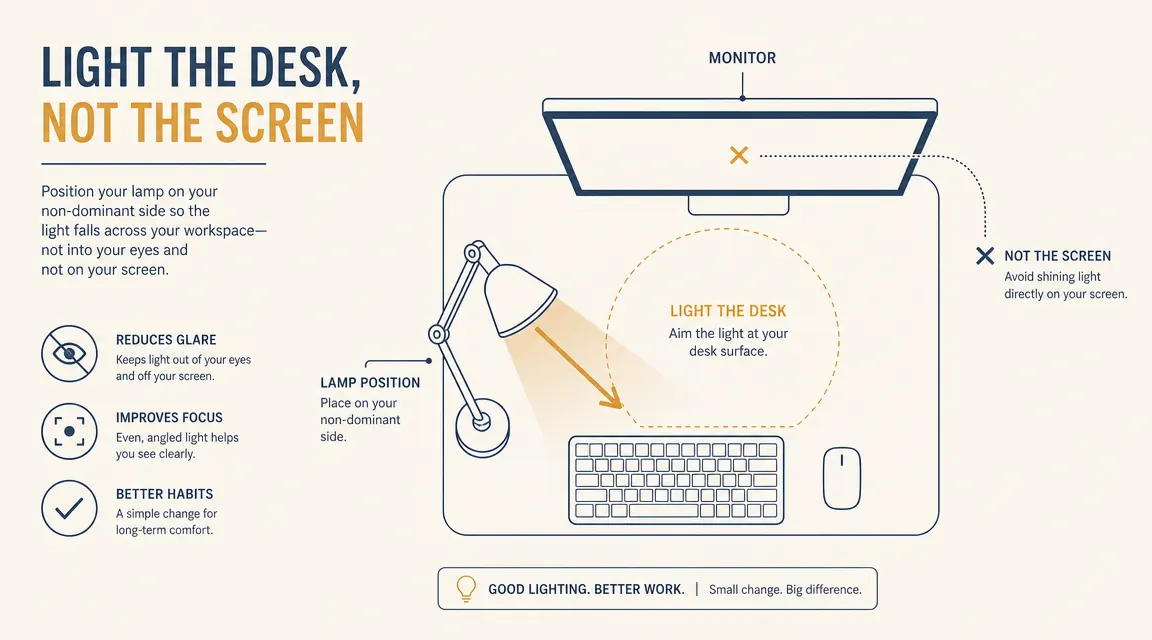
This is where the real improvement happens. A dedicated desk lamp positioned to your non-dominant side (to the right if you are right-handed, left if left-handed) creates a focused pool of light exactly where your hands and documents are, without shining at your monitor face. The lamp replaces the overhead as your primary work light, meaning you can dim the ceiling down and let the focused task light do the job.
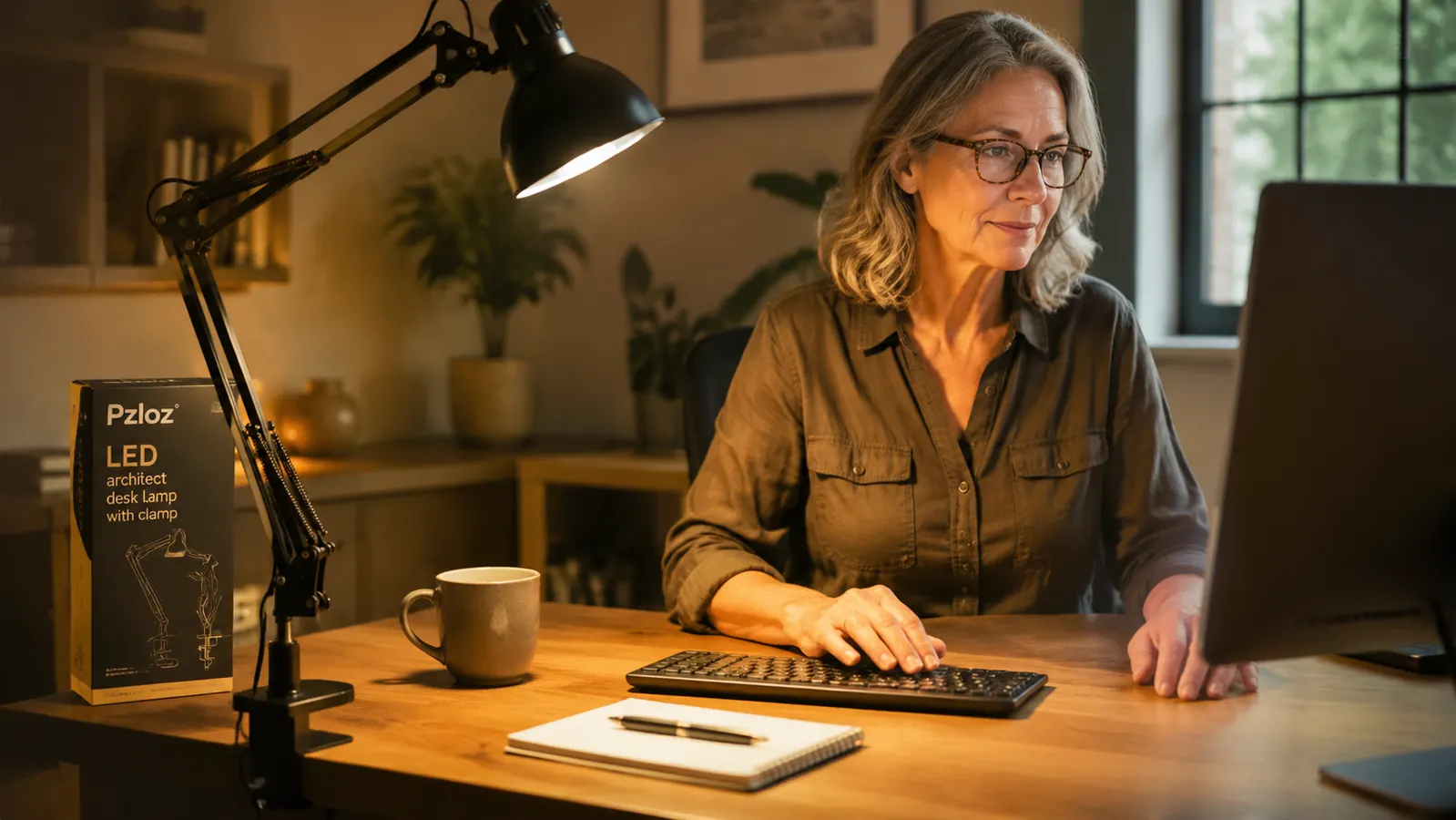
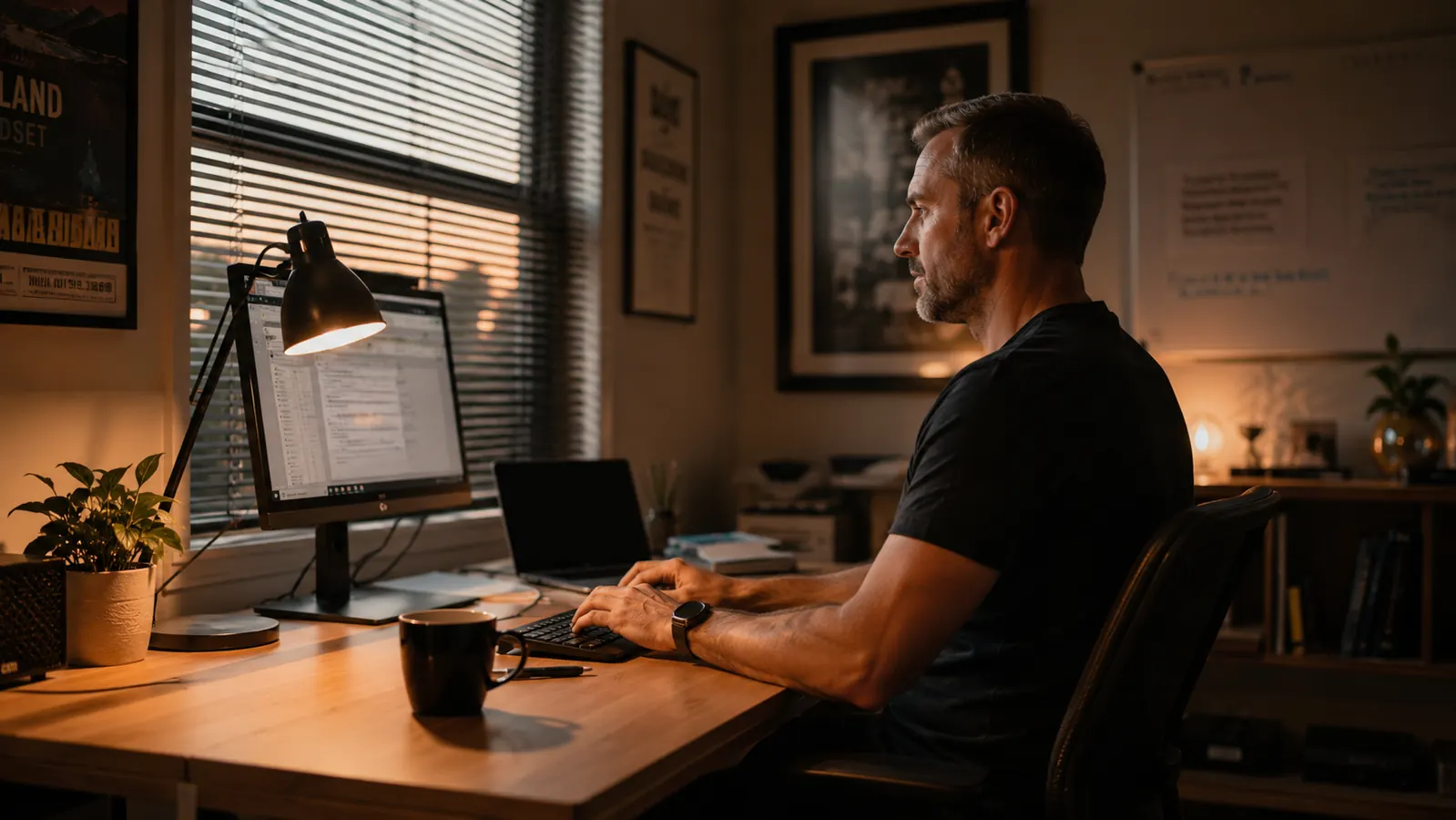
The lamp I use and recommend for this is the Pzloz LED architect lamp with a clamp base. It mounts on the edge of the desk so it takes up no footprint at all, the arm extends far enough to position light exactly where I need it, and it has two color temperature settings: a cooler mode for morning focus work and a warmer mode for afternoon and evening sessions. The ability to shift color temperature through the day is genuinely useful in a way I did not expect before I had it.
What makes the architect style specifically good for eye strain is the arm shape: you can bend it so the lamp head points down and slightly away from you, which means the light source itself is out of your field of vision. You see the light it produces on the desk surface, not the bulb. That matters. A bare globe on a gooseneck pointed vaguely in your direction adds to the visual noise even if it is softer than the overhead.
Position the lamp so you can see the light on your desk but not the bulb itself. That single adjustment removes the biggest source of visual fatigue from your whole workspace.
Step 5: Set Color Temperature to Match the Time of Day
Color temperature is measured in Kelvin. Lower numbers are warmer and more amber. Higher numbers are cooler and bluer. Your brain uses the color of ambient light as a cue for what time of day it is and how awake you should feel. Deliberately matching your lamp to the time of day makes long work sessions feel much more natural.
For morning work, especially if you are trying to stay focused and clear-headed, a cooler temperature in the 4000K to 4500K range works well. It feels energizing without being harsh. For afternoon and evening work, or if you are doing creative tasks that feel better in a softer mood, dropping to 2700K to 3000K warm white reduces the mental effort your eyes put into processing the light and makes the whole room feel calmer.
The Pzloz lamp handles this with a simple touch on the base: one setting is cool white, one is warm white. It also has 10 brightness levels so you can match intensity to whatever the ambient room light is doing. I find myself adjusting it two or three times during a workday without thinking much about it, the way you might adjust a window shade.
What Else Helps
Once your task lighting is sorted, a few other small adjustments complete the picture. The 20-20-20 rule is genuinely useful: every 20 minutes, look at something 20 feet away for 20 seconds. It lets your focus muscles relax briefly and prevents the cumulative eye fatigue that builds across a long day. Set a soft reminder on your phone or computer until it becomes habit.
Monitor brightness matters too, but in the opposite direction from what most people assume. Most monitors ship set to maximum brightness, which is calibrated for a showroom floor, not a home office. A monitor set to 60 to 70 percent brightness in a well-lit room typically causes less strain than one set to 100 percent. Match your monitor brightness to your ambient light level, not to the monitor's maximum capability.
Matte screen filters are worth considering if you work with a window you cannot reposition. They do not eliminate glare entirely but reduce the sharp reflections to a diffuse haze that is far easier to look past. They are a workaround, not a cure, but sometimes a workaround is what the room allows.
If you want to go deeper on the lamp itself, there is a detailed long-term review of the Pzloz lamp after twelve months of daily use at Pzloz Desk Lamp Review: Twelve Months of Daily Use in a Home Office. And if you are weighing whether to spend more for the BenQ ScreenBar Halo, the comparison at Pzloz Desk Lamp vs BenQ ScreenBar Halo breaks down whether the price gap is worth it for your situation.
Good home office lighting is not about having more light. It is about having the right light in the right place so your eyes can stop working so hard to keep up.
Ready to stop squinting at your screen by 3 PM?
The Pzloz architect clamp lamp is the most practical upgrade for home office eye strain I have found at this price. Dual color temperatures, 10 brightness levels, clamp mount that frees up your desk surface, and a USB charging port you will actually use every day.
Amazon Check Today's Price on Amazon →